
General → Settings
Purpose · Steps · Inputs and units · Limitations · Related topics
Purpose
Use the Settings menu to open Operating Conditions or choose the interface appearance. The image below shows the Appearance submenu with Modern selected.
Steps
- Open Settings in the top menu.
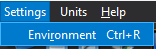
- Choose Settings → Operating Conditions, or press Ctrl+R, to edit reference pressure and, when heat transfer is enabled, buoyancy settings. Click Apply in that dialog.
- Open Settings → Appearance and choose Classic or Modern to change the interface appearance. A dot marks the active choice. CFxD remembers your choice between sessions; Modern is used when no preference has been saved.
Inputs and units
| Input or value | Meaning | Units |
|---|---|---|
| Operating Conditions (Ctrl+R) | Opens the dialog for reference pressure and, with heat transfer enabled, buoyancy reference temperature and gravity. See Operating conditions for details. | Pa, K, m/s² |
| Appearance → Classic / Modern | Selects the interface appearance. The dot indicates the active choice. | No physical units |
Limitations
- Buoyancy is available only with heat transfer enabled. Appearance changes affect presentation; physics is configured through the setup controls.