
We will simulate a flow in pipe.
Start CFxD from the Start Menu or the Desctop shortcut.
Geometry
In the Geometry tab, use the Input panel to create three points with the following coordinates:
- P1 (0,01, 0)
- P2 (10, 0, 0)
- P3 (0, 1, 0)
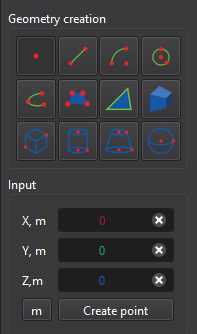
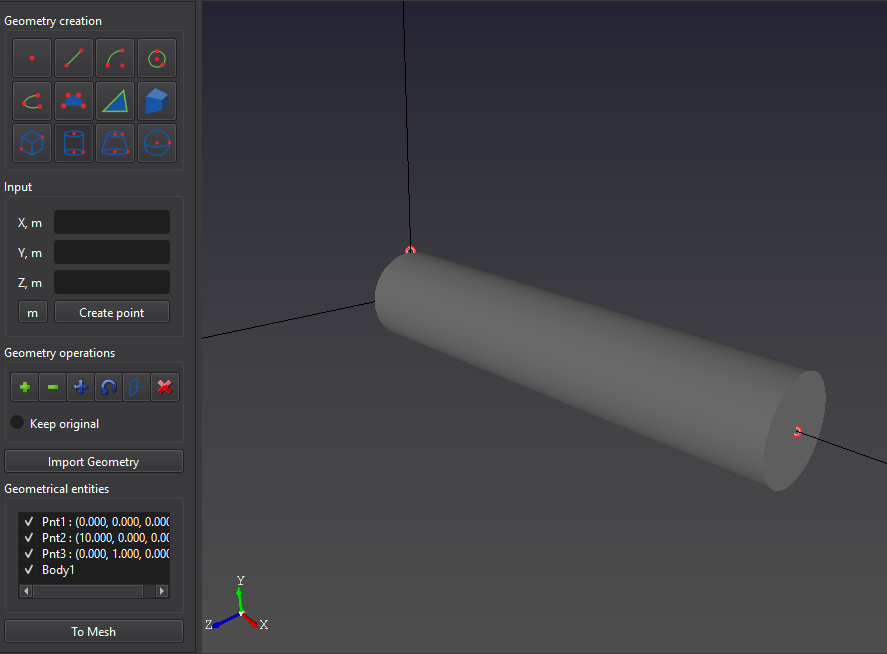
Select Create Cylinder in the Geometry creation panel, then pick the three points in the View window in order: P1 → P2 → P3 (left mouse button (LMB)). Navigation tips: rotate with MMB, pan with RMB, and zoom with the mouse wheel.
Enable naming mode: right-click (RMB) on empty space in the View window, then select the front face with RMB. In the dialog, set the name to inlet.
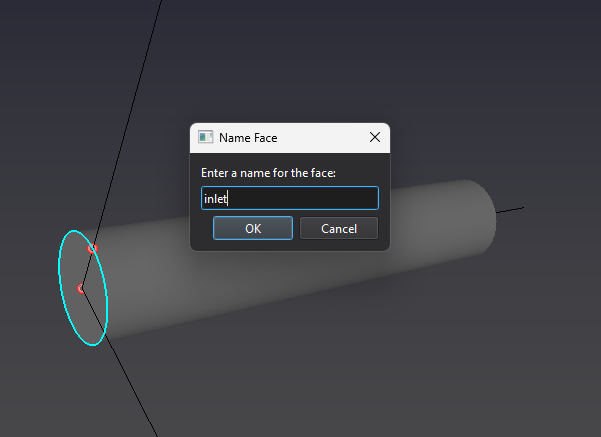
Repeat for the back face and set the name to outlet. The names will appear in the Geometrical Entities tree.
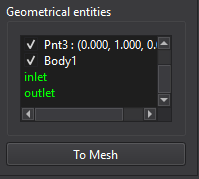
Click To Mesh to proceed to the next stage. The remaining face will be automatically assigned as wall.
Mesh
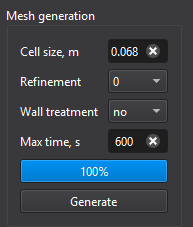
Keep the default settings in the Mesh panel and click Generate Mesh.
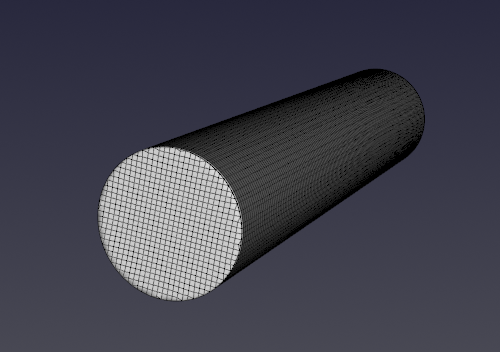
The meshed cylinder will appear in the View window.
Click To Setup to proceed.
Setup
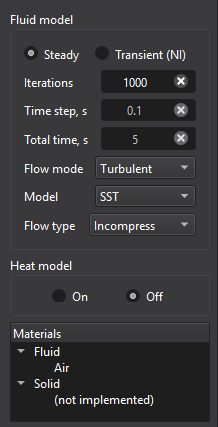
Keep the default settings in the Fluid model panel and in the Materials tree. Use Air as the material.
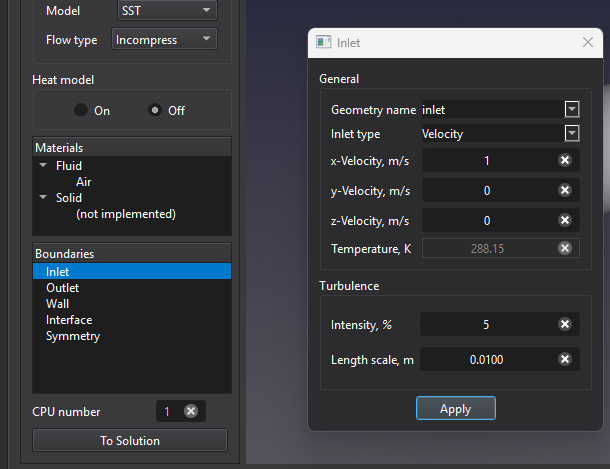
In the Boundaries panel:
- Select Inlet and confirm the default settings in the Inlet dialog (the face name inlet should already be selected).
- Do the same for Outlet and Wall.
Click To Solution.
Solution
In the Input panel, add a Monitoring Point at (9, 0, 0).
In the Monitoring Entities tree, click the new point and choose Variable → Ux to monitor the X-direction velocity.
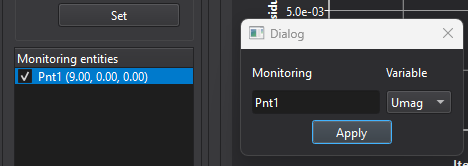
Click Run.
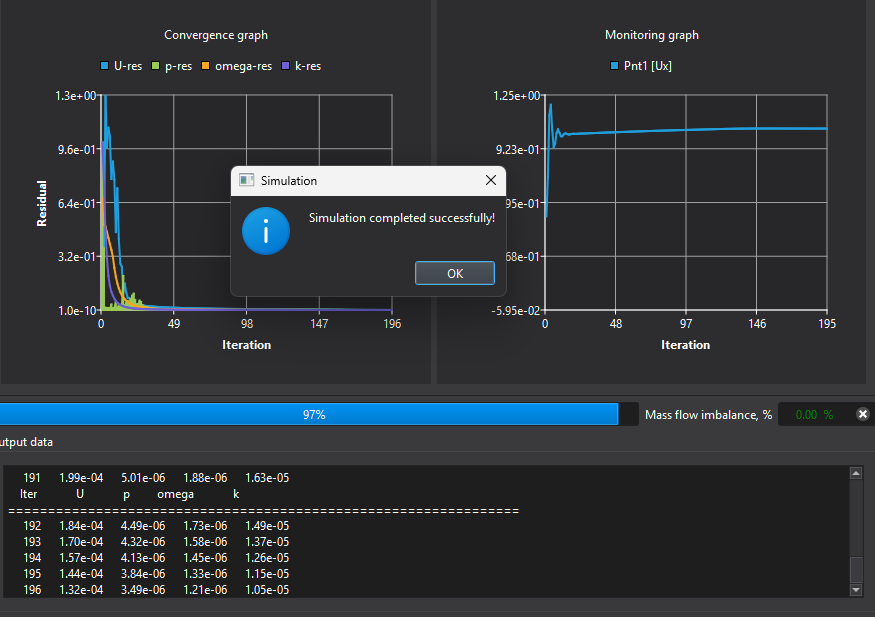
After the run finishes, click To Result.
Result
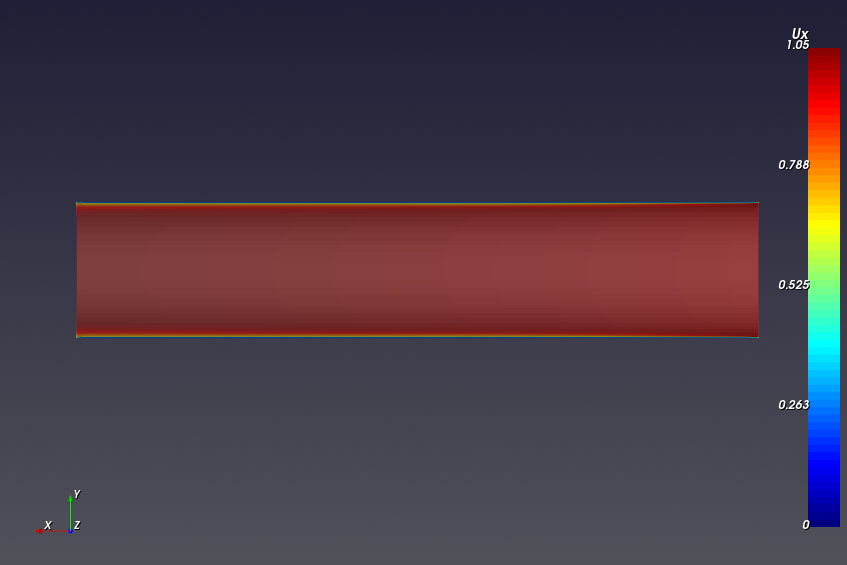
Create a Post Plane using point (0, 0, 0). In the Post Entities tree, select the new plane and choose Variable → Ux.
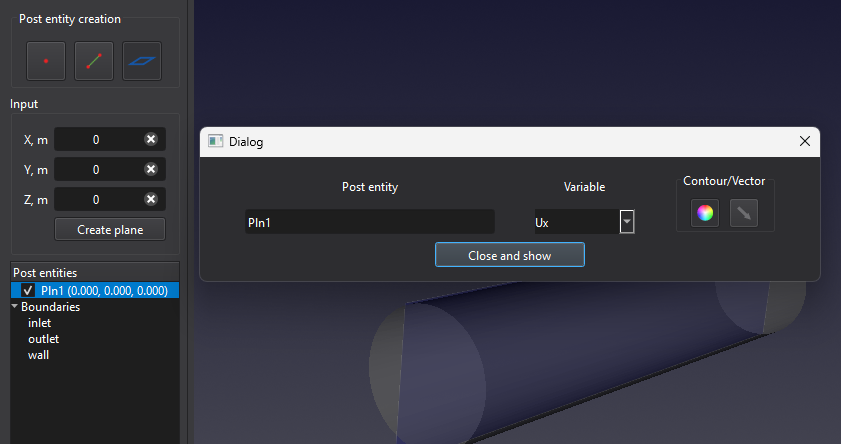
The velocity contour will appear in the View window.
Finally, click Report to generate a PDF report containing key input data and images.
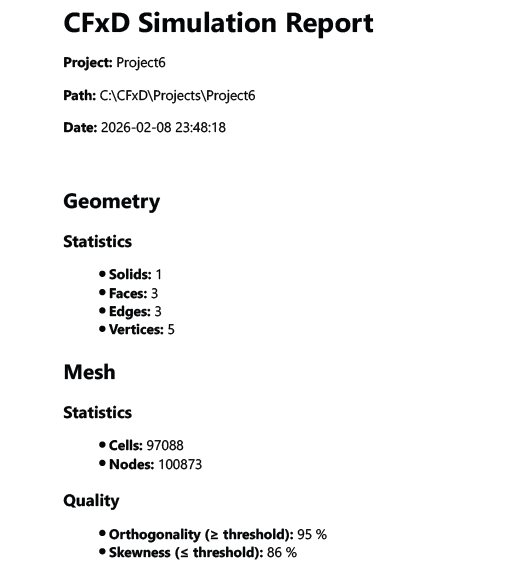
You can now save and close your first project. By default, CFxD saves projects under an auto-generated name (e.g., Project1) on the C: drive.